


Reset the AI-12 Dashcam – Factory Reset
Reset the AI-12 Dash Cam
Occasionally, you might need to do a factory reset on the AI-12 dash cam. When you do a factory reset, user settings including the user password are removed and the factory settings are restored.
Possible reasons for doing a factory reset are:
- The dash cam doesn’t turn on.
- The screen is frozen.
- The dash cam does not connect to the internet.
Note
Ensure the dash cam is fully charged. A factory reset does not reset portal or other non-device settings. The data profile level of your organization is therefore not affected.
Caution
The factory reset does not reformat the SD card. If you need to wipe-out and reformat the SD card, you need to manually trigger this directly from the dashcam or from the application.
How to Reset the Dashcam
1. Locate the Reset button on the side of the dashcam.
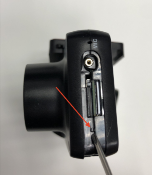
2. Long press the Reset button for about five (5) seconds.
Caution
Pressing the button too hard can damage the hardware.
The reboot status screen may appear on the dashcam. The screen is for information only. No action is required.
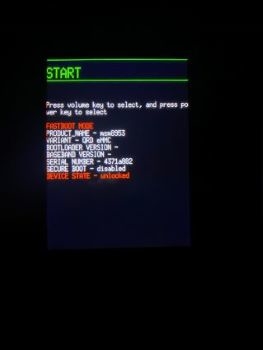
3. Wait for the camera to power back up. This may take up to 5 minutes.
The screen goes blank and then the dashcam restarts with the factory settings.